

Change your password
1
Open your account settings
Open your account settings. You can also click your name in the bottom-left corner of the dashboard, then open Account settings.
2
Change the password
- Click Change Password.
- Enter your Current Password.
- Enter your new password in both New Password and Confirm New Password.
- Click Change Password.
Turn on MFA for your account
1
Open your account settings
Open your account settings. You can also click your name in the bottom-left corner of the dashboard, then open Account settings.
2
Start MFA setup
Click Enable Multi-Factor Authentication.
3
Scan the QR code
Scan the QR code with your authenticator app, such as Google Authenticator, Microsoft Authenticator, or 1Password.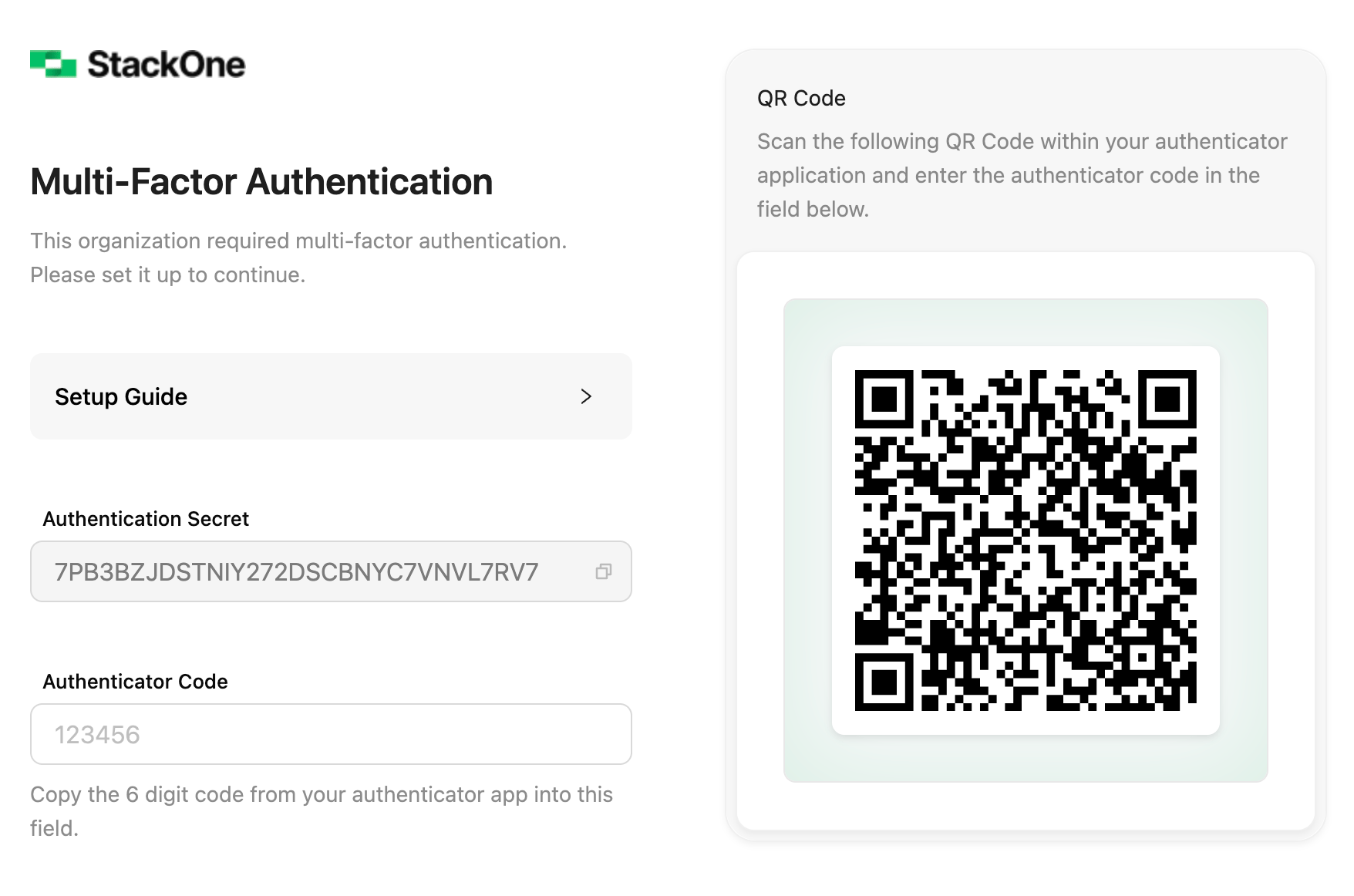
4
Confirm the code
Enter the 6-digit code from your authenticator app to confirm.
Enforce MFA for the organization
Organization Admins can require multi-factor authentication (MFA) for everyone in the organization, current and future users alike.- Go to Organization > Security > Authentication.
- On the Multi-factor Authentication card, select Enable MFA.
- Select Confirm.