> ## Documentation Index
> Fetch the complete documentation index at: https://docs.stackone.com/llms.txt
> Use this file to discover all available pages before exploring further.
# Passwords and MFA
> Change your password, turn on multi-factor authentication, and enforce it for the organization.
Users change their own password and turn on MFA from their account settings. **Organization Admins** can also enforce MFA for everyone in the organization.
## Change your password
Open your [account settings](https://app.stackone.com/account/security). You can also click your name in the bottom-left corner of the dashboard, then open **Account** settings.
1. Click **Change Password**.
2. Enter your **Current Password**.
3. Enter your new password in both **New Password** and **Confirm New Password**.
4. Click **Change Password**.
## Turn on MFA for your account
Open your [account settings](https://app.stackone.com/account/security). You can also click your name in the bottom-left corner of the dashboard, then open **Account** settings.
Click **Enable Multi-Factor Authentication**.
Scan the QR code with your authenticator app, such as Google Authenticator, Microsoft Authenticator, or 1Password.
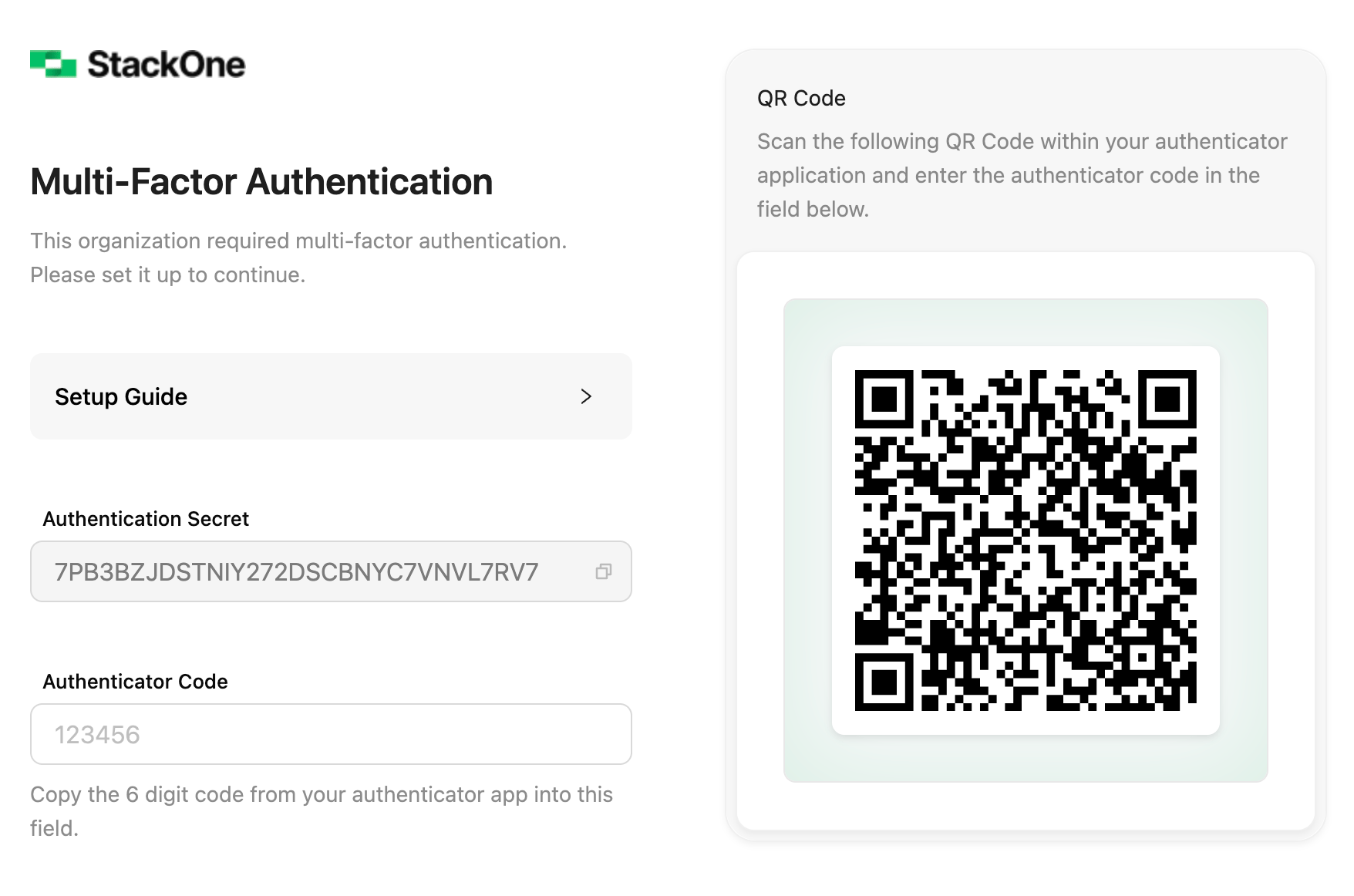 Enter the 6-digit code from your authenticator app to confirm.
## Enforce MFA for the organization
**Organization Admins** can require multi-factor authentication (MFA) for everyone in the organization, current and future users alike.
1. Go to [**Organization > Security > Authentication**](https://app.stackone.com/organization/security/authentication).
2. On the **Multi-factor Authentication** card, select **Enable MFA**.
3. Select **Confirm**.
Users without MFA set it up the next time they sign in.
## Help a user who is locked out
An **Organization Admin** can unlock an account locked by failed sign-ins, or reset another user's MFA. Select **Unlock Member** or **Reset MFA** from the user's menu on the **Members** tab of [**Organization > Manage Team**](https://app.stackone.com/organization/manage_team).
This documentation is built and hosted on [Mintlify](https://mintlify.com), a developer documentation platform.
Enter the 6-digit code from your authenticator app to confirm.
## Enforce MFA for the organization
**Organization Admins** can require multi-factor authentication (MFA) for everyone in the organization, current and future users alike.
1. Go to [**Organization > Security > Authentication**](https://app.stackone.com/organization/security/authentication).
2. On the **Multi-factor Authentication** card, select **Enable MFA**.
3. Select **Confirm**.
Users without MFA set it up the next time they sign in.
## Help a user who is locked out
An **Organization Admin** can unlock an account locked by failed sign-ins, or reset another user's MFA. Select **Unlock Member** or **Reset MFA** from the user's menu on the **Members** tab of [**Organization > Manage Team**](https://app.stackone.com/organization/manage_team).
This documentation is built and hosted on [Mintlify](https://mintlify.com), a developer documentation platform.