> ## Documentation Index
> Fetch the complete documentation index at: https://docs.stackone.com/llms.txt
> Use this file to discover all available pages before exploring further.
# Defender
> Protect your AI agents from prompt injection attacks by scanning API tool call responses before they reach your LLM.
**Defender** protects your AI agents from prompt injection attacks by scanning API tool call responses before they reach your LLM. When an MCP tool returns data from a third-party provider (emails, CRM records, documents), that data could contain instructions designed to hijack your agent's behavior.
Responses are intercepted and classified by Defender, and depending on the **Protection Mode** you choose, Defender logs the verdict, removes high-risk content, or blocks the response before it reaches your agent.
## How it works
 Defender's standard check is the **Light Scan**, two checks run together on every response:
* **Pattern matching**: A fast rule-based scan for known prompt injection signatures and risky field patterns, with negligible latency.
* **ML classification**: A local ML model (MiniLM) scores the content for novel or subtle attacks that pattern matching would miss. It scans the SFE-filtered payload (or the `tier2Fields` subset when configured), and reports its score as `tier2Score` in the response metadata.
Responses that exceed the configured size limits can skip scanning entirely (see [Advanced settings](#advanced-settings)).
The **Deep Scan** is a third check on top: an LLM reviews the response for risks the Light Scan misses. It runs only in StackOne's hosted service, not in the open source `@stackone/defender` package. The **Scan Mode** setting decides which responses get a Deep Scan (see [Scan mode](#scan-mode)).
Risk level and scan metadata are returned alongside every response in every mode, so you can see what Defender detected even when it changed nothing.
## When to use Defender
* You are building AI agents or MCP-based workflows that process third-party API responses
* Your integrations handle sensitive data such as emails, files, calendar events, or CRM records
* You want to observe risk signals on tool call responses without necessarily blocking them
## Configure from the dashboard
Navigate to your project in the StackOne dashboard, then open the **Defender** tab in project settings. This is the baseline for every account in the project.
Defender's standard check is the **Light Scan**, two checks run together on every response:
* **Pattern matching**: A fast rule-based scan for known prompt injection signatures and risky field patterns, with negligible latency.
* **ML classification**: A local ML model (MiniLM) scores the content for novel or subtle attacks that pattern matching would miss. It scans the SFE-filtered payload (or the `tier2Fields` subset when configured), and reports its score as `tier2Score` in the response metadata.
Responses that exceed the configured size limits can skip scanning entirely (see [Advanced settings](#advanced-settings)).
The **Deep Scan** is a third check on top: an LLM reviews the response for risks the Light Scan misses. It runs only in StackOne's hosted service, not in the open source `@stackone/defender` package. The **Scan Mode** setting decides which responses get a Deep Scan (see [Scan mode](#scan-mode)).
Risk level and scan metadata are returned alongside every response in every mode, so you can see what Defender detected even when it changed nothing.
## When to use Defender
* You are building AI agents or MCP-based workflows that process third-party API responses
* Your integrations handle sensitive data such as emails, files, calendar events, or CRM records
* You want to observe risk signals on tool call responses without necessarily blocking them
## Configure from the dashboard
Navigate to your project in the StackOne dashboard, then open the **Defender** tab in project settings. This is the baseline for every account in the project.
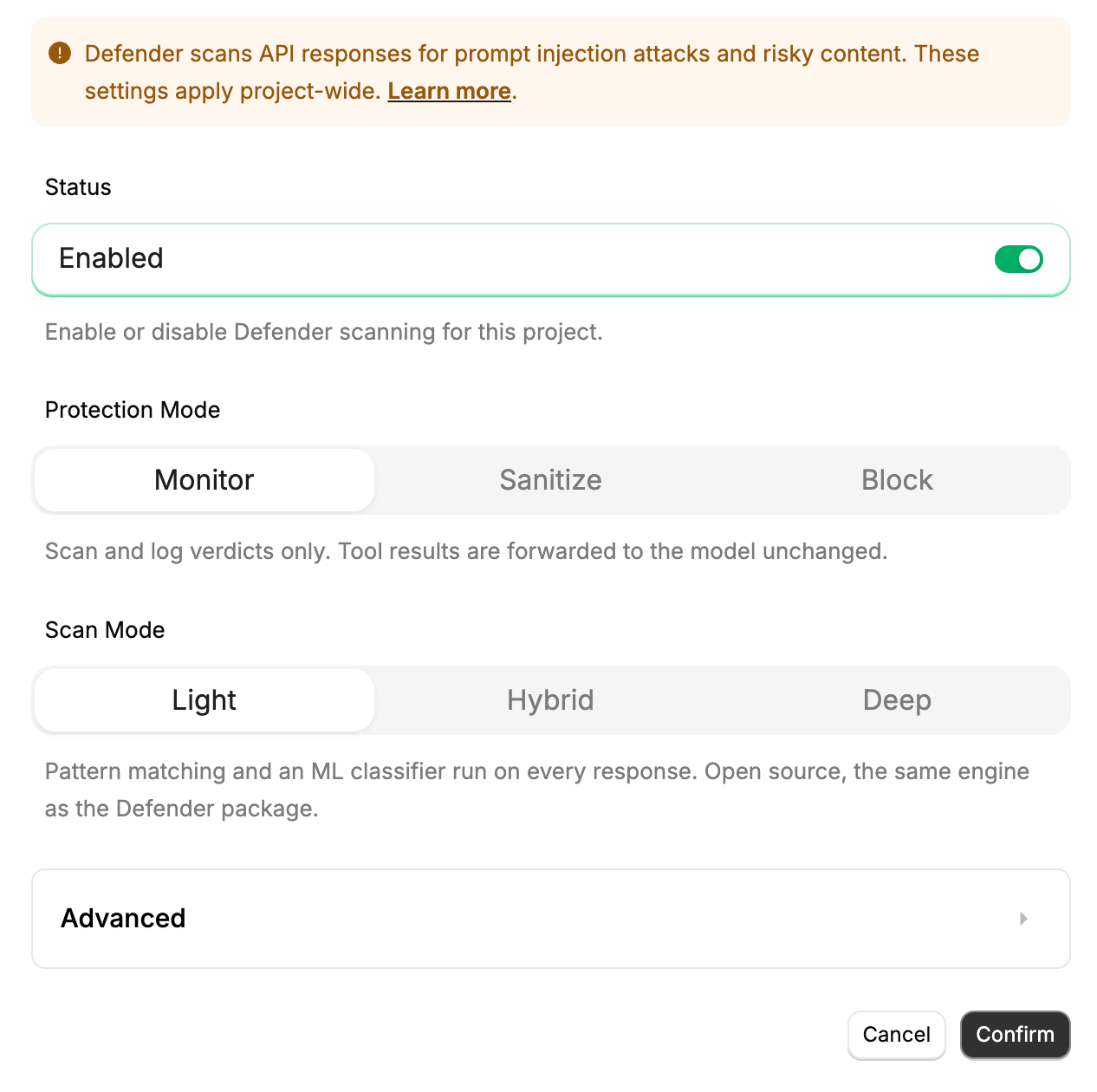 Defender settings apply project-wide. Per-account and per-request overrides take precedence where supported.
### Core settings
| Setting | Description |
| - | - |
| **Status** | Enables Defender scanning for this project. Default: **On** for new projects. |
| **Protection Mode** | What Defender does with positive matches. See [Protection mode](#protection-mode). |
| **Scan Mode** | How thoroughly responses are scanned. See [Scan mode](#scan-mode). |
### Protection mode
| Mode | What happens to the tool result |
| - | - |
| **Monitor** (Default) | Observe only. Defender scans and adds its verdict to the logs. The tool result reaches your agent unchanged. |
| **Sanitize** | Defender removes detected high-risk content from the tool result before your agent sees it. |
| **Block** | Responses classified as high or critical risk are blocked and an error is returned to your agent. Lower risk responses are cleaned as **Sanitize** would handle them. |
Start in **Monitor** to see what Defender would act on in your traffic by reviewing logs. Move to **Sanitize** or **Block** when you are ready to enforce.
### Scan mode
| Mode | What it runs | When to choose it |
| - | - | - |
| **Light** (Default) | The Light Scan on every response. | Fastest. No response goes through the LLM review. |
| **Hybrid** | The Light Scan on every response, plus a Deep Scan when the result is uncertain. | Adds the LLM review only where the Light Scan could not classify confidently. |
| **Deep** | A Deep Scan on every response, skipping the Light Scan. | Most thorough. Every response gets an LLM review. |
Light is the default. The Light Scan is the same open source engine as the `@stackone/defender` package; the Deep Scan runs only within StackOne's hosted service, so Hybrid and Deep are available here but not in the package.
### Advanced settings
| Setting | Description | Default |
| - | - | - |
| **High Risk Threshold** | Score (0–1) above which content is classified as high risk. Calibrated for the bundled model | 0.64 |
| **Medium Risk Threshold** | Score (0–1) above which content is classified as medium risk | 0.5 |
| **Large Response Behavior** | What to do when a response exceeds the size limits: `Skip scanning` (default), `Block the response`, or `Scan anyway` | Skip scanning |
| **Max Response Size** | Byte threshold that triggers large response behavior | 1,048,576 (1 MB) |
| **Max Response Words** | Word count threshold that triggers large response behavior | 10,000 |
| **Annotate Tool Results** | Wrap sanitized tool results with boundary tags such as `[UD-abc123]...[/UD-abc123]` (where the suffix is a random per-response ID) so downstream prompts can reason about data boundaries. Pair this with `generateBoundaryInstructions()` from `@stackone/defender` in your system prompt when enabled. | Off |
| **Semantic Field Extractor** | Skip metadata and identifier fields (UUIDs, timestamps, URLs, etc.) before classification to reduce latency and false positives. Recommended. | On |
| **Multi-head Detection** (experimental) | Use the auxiliary classifier head as a veto to rescue benign meta-discussion content the main classifier may over-flag, such as training modules or support tickets with imperative phrasing. Turn it on if you see false positives on documentation-style content. | Off |
## Implement it
Override Defender per toolset in the Agent SDK.
## FAQ
It depends on when your project was created. New projects have Defender on. Older projects start with it off: turn it on from the **Defender** tab in project settings when your agents consume third-party data. Once on, it runs in **Monitor**, so tool results are unchanged until you choose **Sanitize** or **Block**.
The Light Scan adds little: pattern matching is negligible, and the ML classifier runs locally, so there is no external API call. The Semantic Field Extractor trims metadata and identifier fields before classification to keep latency low; for typical responses the added latency is under 100ms. A Deep Scan adds an LLM review to the responses it covers, which costs more time than the local checks.
The tool call returns an error to your agent indicating the response was blocked. The agent can handle this like any other tool error: retry, skip, or surface it to the user.
Yes. That is what **Monitor** mode does, and it is the default. Defender still scans and returns `riskLevel`, `tier2Score`, and `detections` in the response metadata, which you can inspect in your logs, but the tool result reaches your agent unchanged.
No. The Light Scan's classification model runs locally within StackOne's infrastructure, and the Deep Scan's LLM is a model StackOne deploys and operates on its own inference endpoints. Your responses are not sent to a third-party AI service, and neither model is trained on your data.
This documentation is built and hosted on [Mintlify](https://mintlify.com), a developer documentation platform.
Defender settings apply project-wide. Per-account and per-request overrides take precedence where supported.
### Core settings
| Setting | Description |
| - | - |
| **Status** | Enables Defender scanning for this project. Default: **On** for new projects. |
| **Protection Mode** | What Defender does with positive matches. See [Protection mode](#protection-mode). |
| **Scan Mode** | How thoroughly responses are scanned. See [Scan mode](#scan-mode). |
### Protection mode
| Mode | What happens to the tool result |
| - | - |
| **Monitor** (Default) | Observe only. Defender scans and adds its verdict to the logs. The tool result reaches your agent unchanged. |
| **Sanitize** | Defender removes detected high-risk content from the tool result before your agent sees it. |
| **Block** | Responses classified as high or critical risk are blocked and an error is returned to your agent. Lower risk responses are cleaned as **Sanitize** would handle them. |
Start in **Monitor** to see what Defender would act on in your traffic by reviewing logs. Move to **Sanitize** or **Block** when you are ready to enforce.
### Scan mode
| Mode | What it runs | When to choose it |
| - | - | - |
| **Light** (Default) | The Light Scan on every response. | Fastest. No response goes through the LLM review. |
| **Hybrid** | The Light Scan on every response, plus a Deep Scan when the result is uncertain. | Adds the LLM review only where the Light Scan could not classify confidently. |
| **Deep** | A Deep Scan on every response, skipping the Light Scan. | Most thorough. Every response gets an LLM review. |
Light is the default. The Light Scan is the same open source engine as the `@stackone/defender` package; the Deep Scan runs only within StackOne's hosted service, so Hybrid and Deep are available here but not in the package.
### Advanced settings
| Setting | Description | Default |
| - | - | - |
| **High Risk Threshold** | Score (0–1) above which content is classified as high risk. Calibrated for the bundled model | 0.64 |
| **Medium Risk Threshold** | Score (0–1) above which content is classified as medium risk | 0.5 |
| **Large Response Behavior** | What to do when a response exceeds the size limits: `Skip scanning` (default), `Block the response`, or `Scan anyway` | Skip scanning |
| **Max Response Size** | Byte threshold that triggers large response behavior | 1,048,576 (1 MB) |
| **Max Response Words** | Word count threshold that triggers large response behavior | 10,000 |
| **Annotate Tool Results** | Wrap sanitized tool results with boundary tags such as `[UD-abc123]...[/UD-abc123]` (where the suffix is a random per-response ID) so downstream prompts can reason about data boundaries. Pair this with `generateBoundaryInstructions()` from `@stackone/defender` in your system prompt when enabled. | Off |
| **Semantic Field Extractor** | Skip metadata and identifier fields (UUIDs, timestamps, URLs, etc.) before classification to reduce latency and false positives. Recommended. | On |
| **Multi-head Detection** (experimental) | Use the auxiliary classifier head as a veto to rescue benign meta-discussion content the main classifier may over-flag, such as training modules or support tickets with imperative phrasing. Turn it on if you see false positives on documentation-style content. | Off |
## Implement it
Override Defender per toolset in the Agent SDK.
## FAQ
It depends on when your project was created. New projects have Defender on. Older projects start with it off: turn it on from the **Defender** tab in project settings when your agents consume third-party data. Once on, it runs in **Monitor**, so tool results are unchanged until you choose **Sanitize** or **Block**.
The Light Scan adds little: pattern matching is negligible, and the ML classifier runs locally, so there is no external API call. The Semantic Field Extractor trims metadata and identifier fields before classification to keep latency low; for typical responses the added latency is under 100ms. A Deep Scan adds an LLM review to the responses it covers, which costs more time than the local checks.
The tool call returns an error to your agent indicating the response was blocked. The agent can handle this like any other tool error: retry, skip, or surface it to the user.
Yes. That is what **Monitor** mode does, and it is the default. Defender still scans and returns `riskLevel`, `tier2Score`, and `detections` in the response metadata, which you can inspect in your logs, but the tool result reaches your agent unchanged.
No. The Light Scan's classification model runs locally within StackOne's infrastructure, and the Deep Scan's LLM is a model StackOne deploys and operates on its own inference endpoints. Your responses are not sent to a third-party AI service, and neither model is trained on your data.
This documentation is built and hosted on [Mintlify](https://mintlify.com), a developer documentation platform.